How to Connect KeyCafe to Sane Host
Once connected, Sane Host creates a KeyCafe access for each booking 7 days before check-in and revokes it when the guest checks out. The access details also become available in your message templates.
1Generate a KeyCafe API key
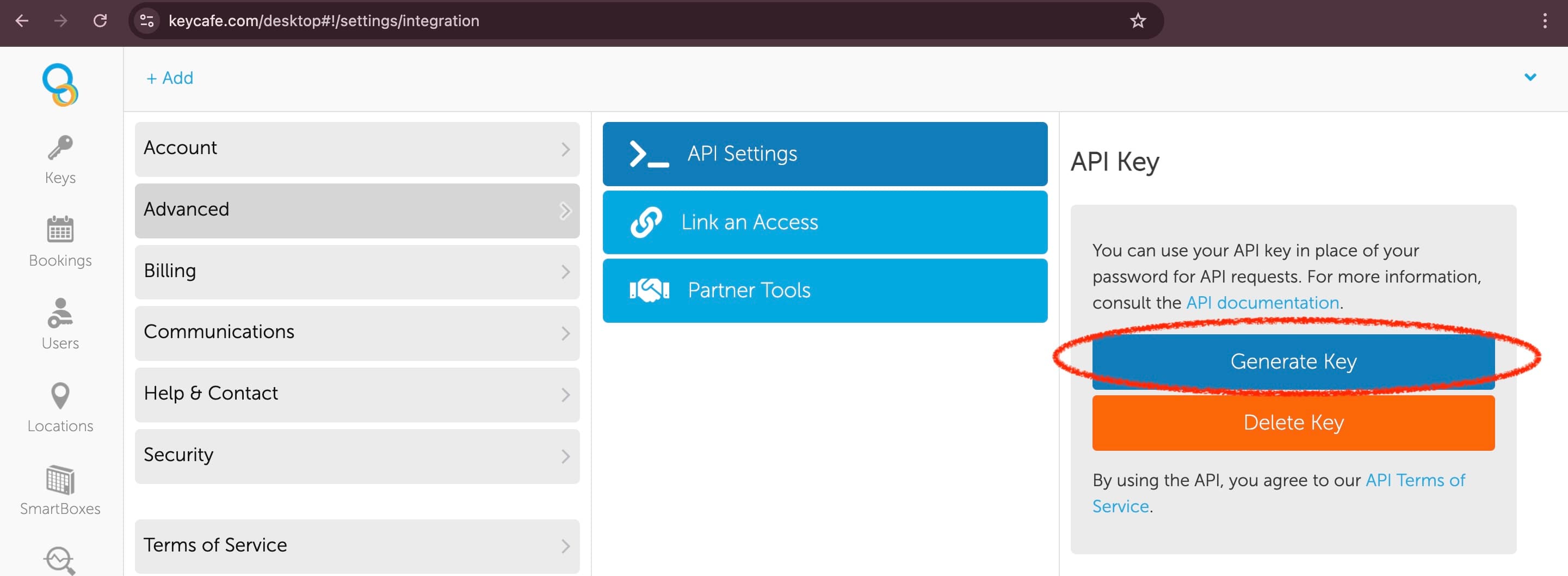
Sign in to keycafe.com. Open the user dropdown in the top-right and choose My Account. On the left, select Advanced, then API Settings, and click Generate Key. Copy the generated key — you’ll paste it into Sane Host in step 4.
2Find your key’s FOB #
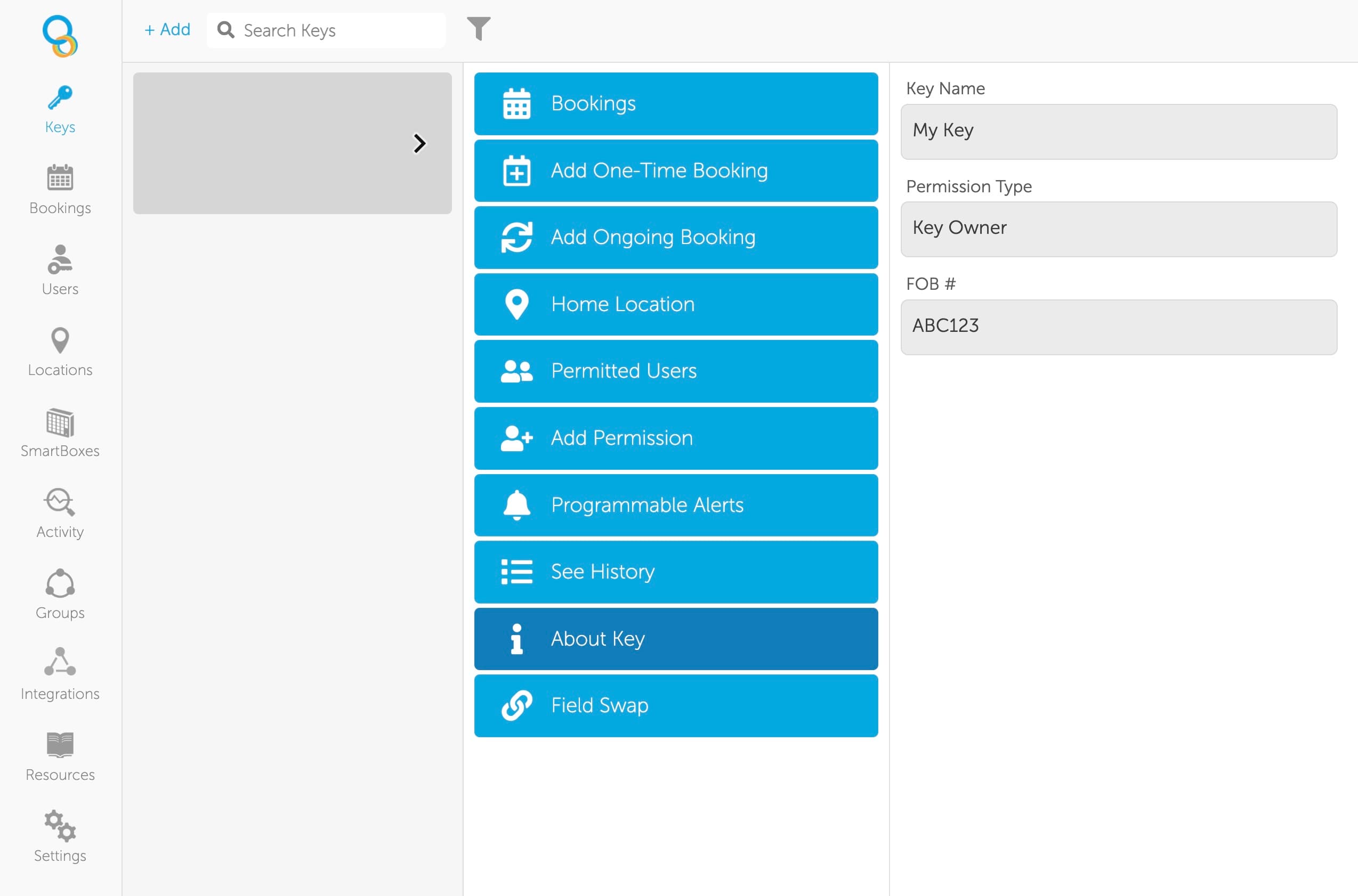
Sane Host needs to know which key in your KeyCafe account belongs to this property. Go to Keys in the left sidebar, select the key for this property, then click About Key. Copy the value in the FOB # field. This is what you’ll enter as “Key/Lockbox ID” in Sane Host.
3Open the property in Sane Host
In Sane Host, open the property you want to wire up and click Edit Property in the top-right.

4Fill in the KeyCafe Integration section
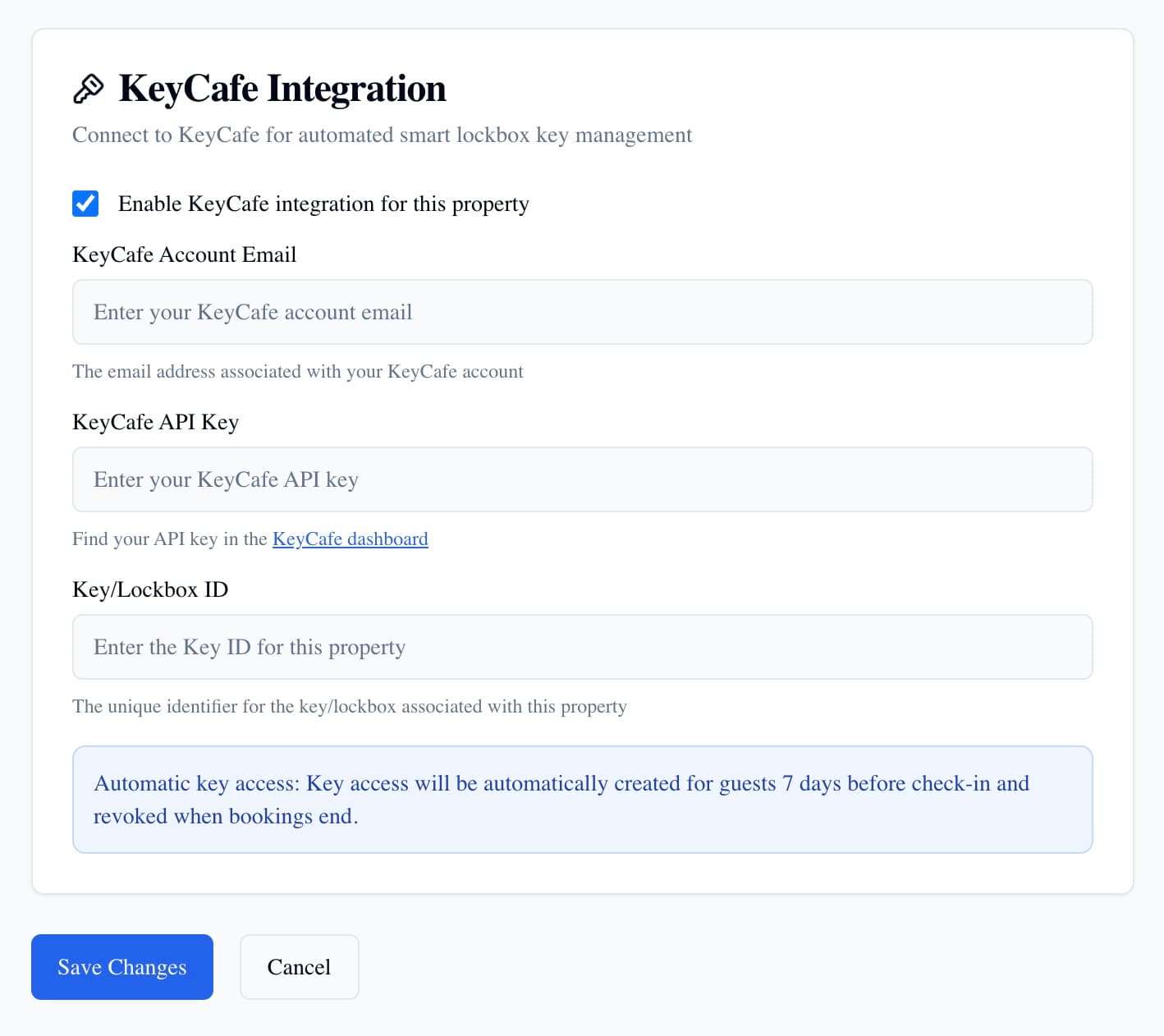
Scroll to the KeyCafe Integration section and check Enable KeyCafe integration for this property. Enter:
- KeyCafe Account Email — the email you sign in to KeyCafe with.
- KeyCafe API Key — the key you generated in step 1.
- Key/Lockbox ID — the FOB # you copied in step 2.
Click Save Changes.
🎉 You’re all set
From now on, every booking on this property will automatically receive KeyCafe access 7 days before check-in, and access will be revoked when the booking ends. The key access details are also available as variables in your message templates — so the guest’s welcome message can include the pickup details without you copying anything by hand.